

Documentation review: 26 October 2026. Managed identity remains a useful way to authenticate supported Logic Apps actions without maintaining an application secret. Enable the identity, grant it access to the target resource, and select managed-identity authentication in a supported connector or action. Availability depends on the hosting plan and connector.
The original AzureAD PowerShell example should be replaced before it is reused. Current Microsoft guidance supports assigning application roles with Microsoft Graph PowerShell or Microsoft Entra PowerShell. An assignment connects the managed identity's service-principal ID, the target API's service-principal ID and the specific app-role ID.
Read-only alert retrieval and actions such as device isolation are different capabilities. Grant only the roles needed by the chosen workflow. A permission assignment alone does not verify the connector, token audience or intended response action.
The older screenshots remain useful as a record of the original automation, but are not a current click-by-click guide. Before publishing a replacement script, validate it against a non-production identity and the exact Defender API operation.
Sources: Logic Apps managed-identity authentication; Grant API permissions to managed identities; Microsoft Graph app-role assignment.
Original walkthrough — historical context
The AzureAD commands and portal screenshots below are retained for reference, not as the current implementation.
This post talkes about the posiblity to automate certain things in Defenfer for Endpoints via Logic Apps. They have been toutourials about this utilizing Flow but and Azure Keyvault but from my point of view a managed Identity is reducing complexity significant and more stable in the daily operation.
What you need:ff
- Azure Subscription
- Permissions to create Resources in an Azure Subscribtion
- Permissions to assign API Permissions
What are the beneifts of this setup:
- No Secret to maintain
- Less maintenace
- easy to understand
- No fiddeling around with an Key Vault
- No Secrets in the Logic App
Create first the Logic App Resource
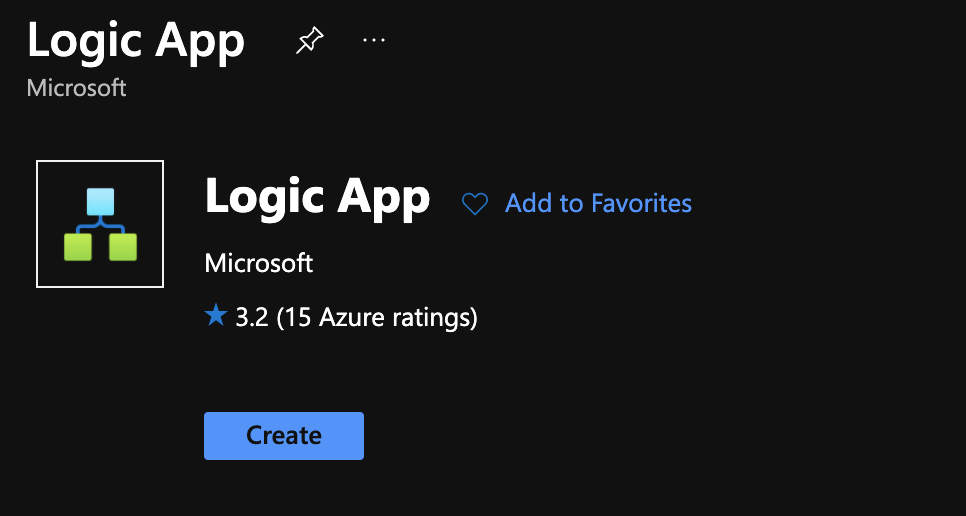
I highly recommend you combine them within an own Resource Group
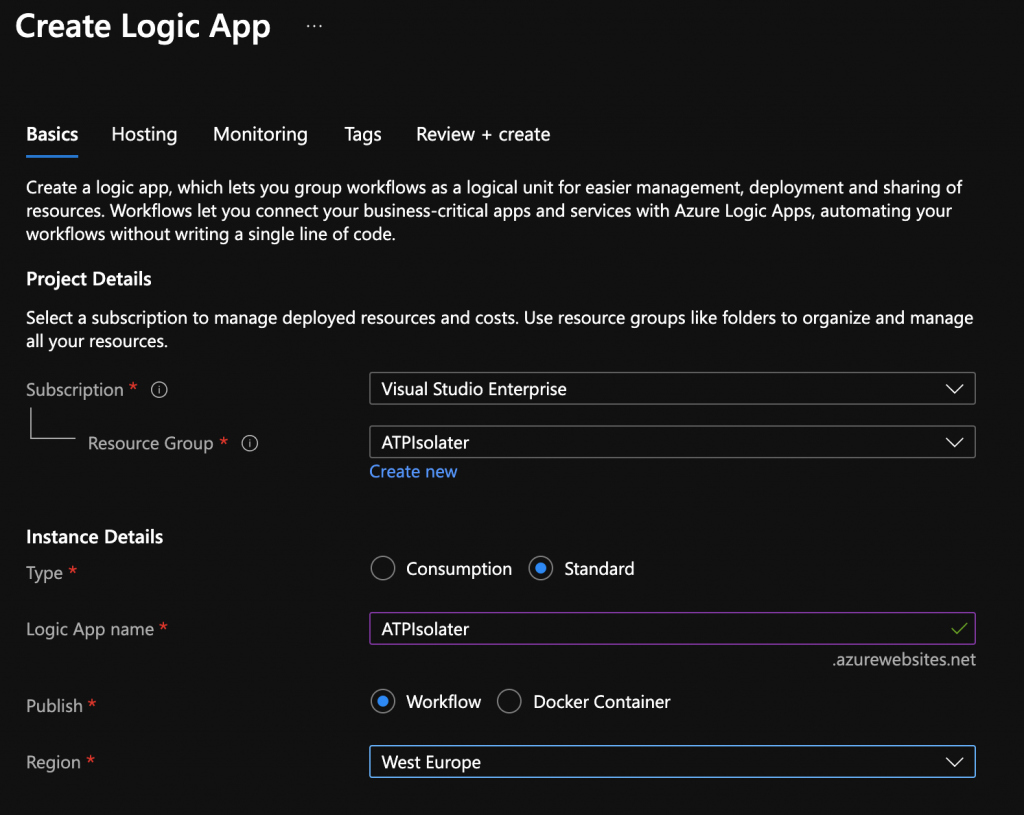
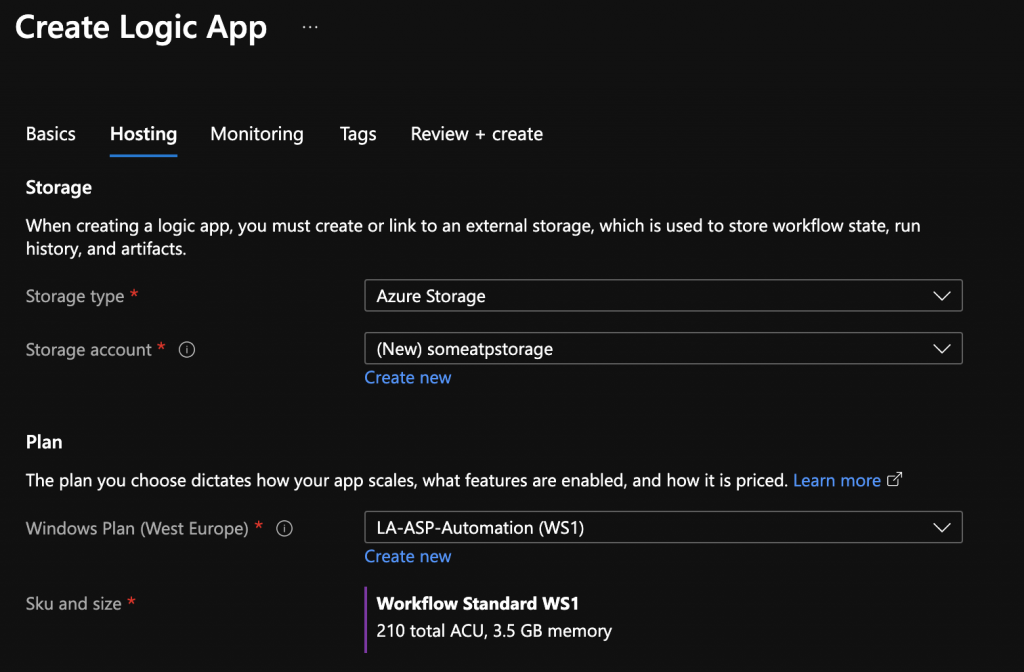
You will need some storage and you need to choose your Plan for the Automation Account
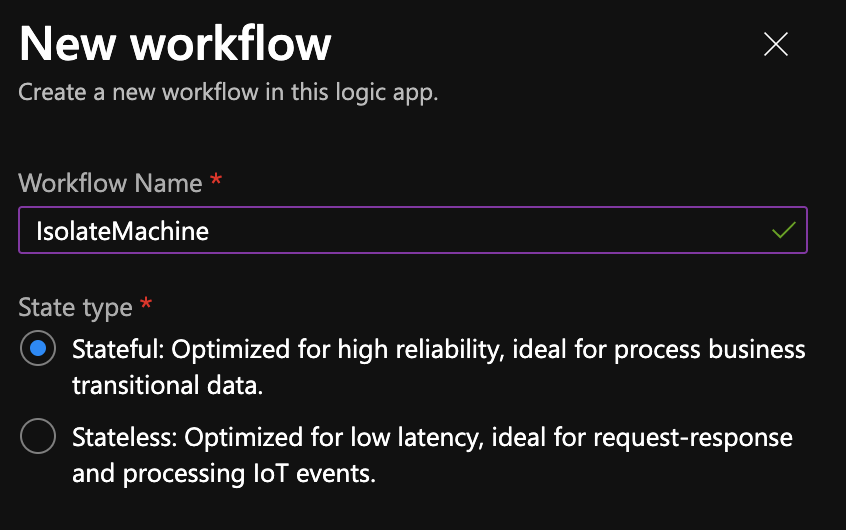
When the Logic App has been deployed go to the Logic App and choose “Add”
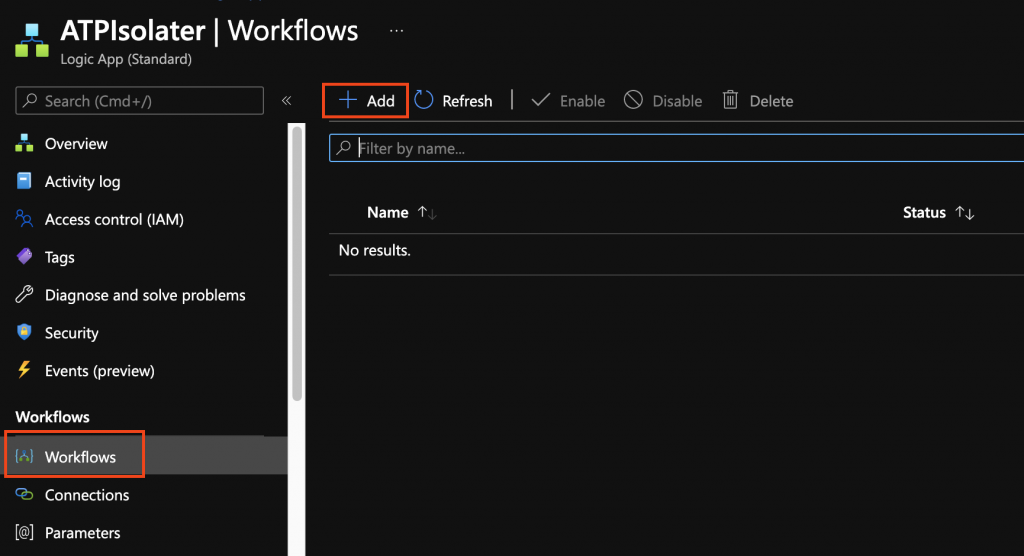
Important for the Azure Functions to be available you will need the
State Type = Statefull !
This is really important because otherwise the Azure Functions will not be available.
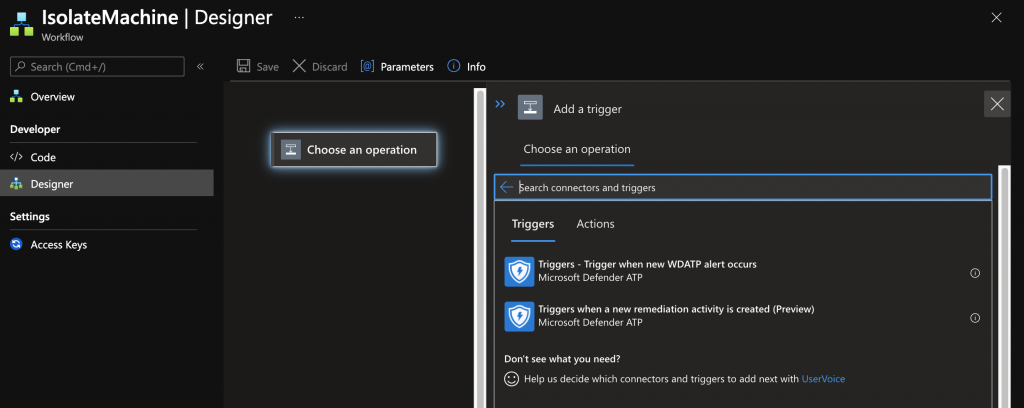
When you choose an Operation
- Azure
- ATP
- Triggers
- Triggers – Trigger when new WDADTP alert occours
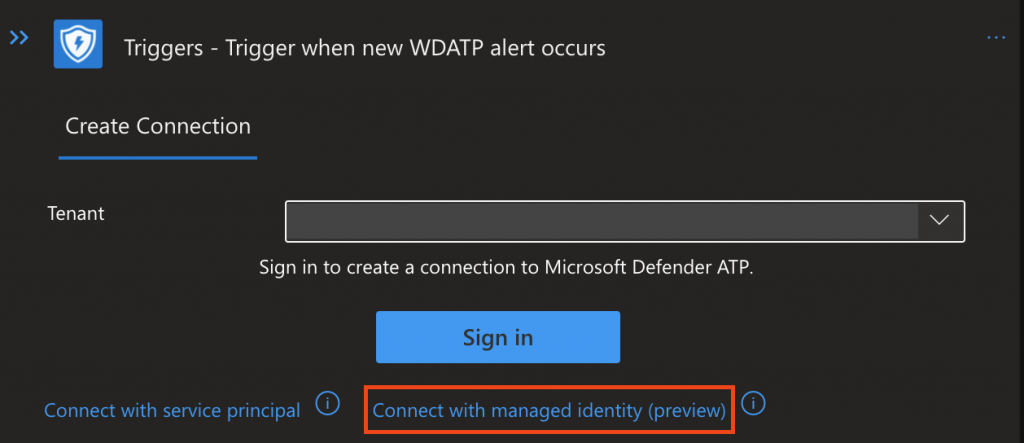
Pick “Connect with managed Identity”
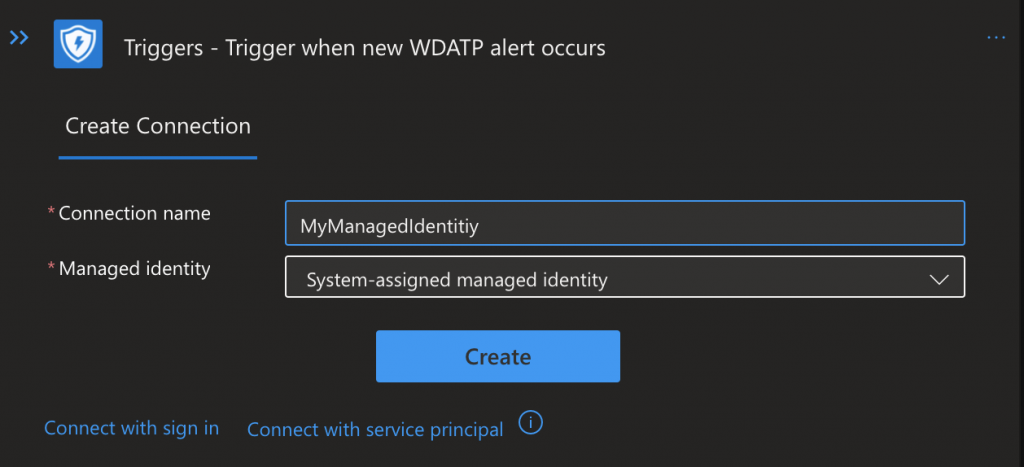
Give you Connection a Name (This is also the API Name you will see in the Security Center)
You will need 2 Actions:
- Get Single Alert (extract Alert ID)
- Extract Machine ID from Alert
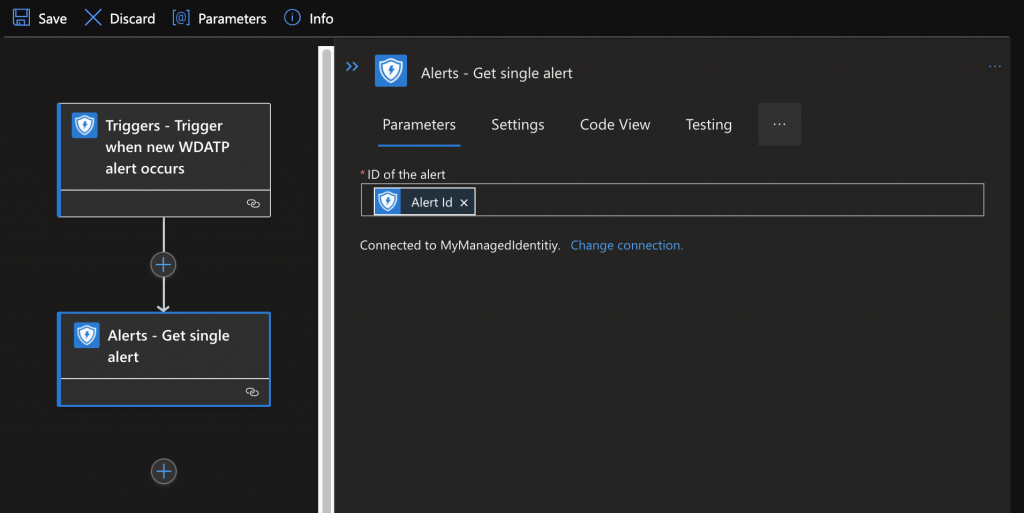
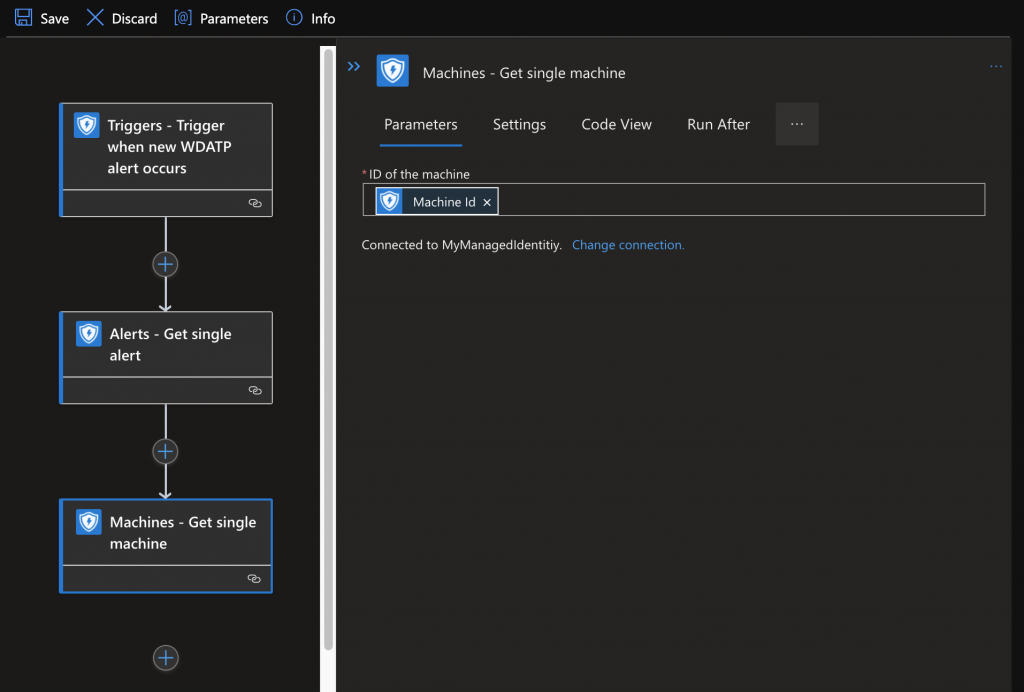
Now you can based on the information make decissions (this is just an example)
How you define your “true” is completly up to you and you might want to extract and alert
to see all the options.
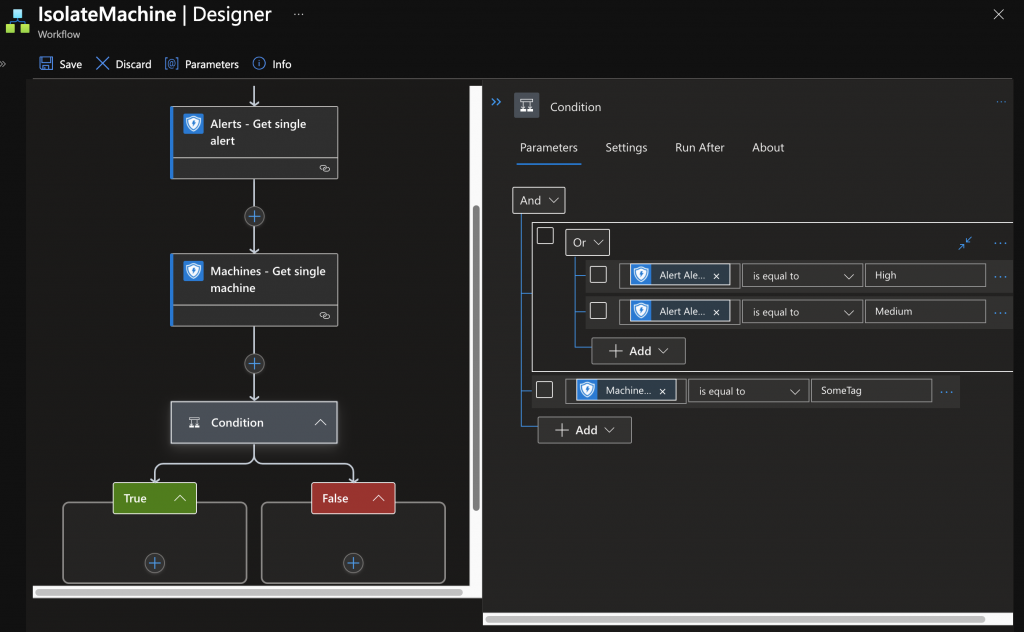
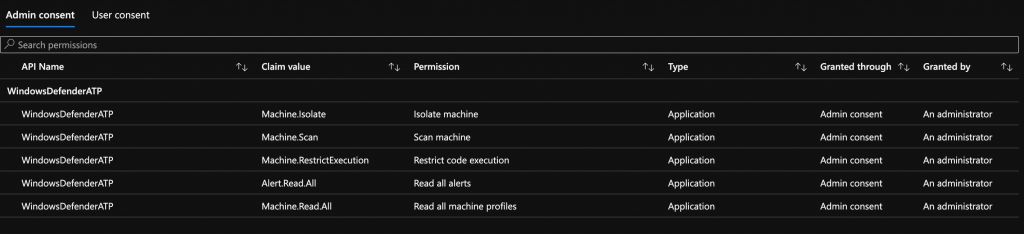
Now youre Logic App is created and will already react on Alerts but it will not be able to isolate due to missing permissions:
How to assign the permissions to the Mananged Identity:
The How to is based on the following MS Techcommunity Article:
Grant Graph API Permission to Managed Identity Object – Microsoft Tech Community
But since the totourial talks about Graph we have to make some ajustments:
#Static Area
$TenantID="21e8c8de-909e-ffff-bc77-f2a486dbffed"
$ATPGraphAppId = "fc780465-2017-40d4-a0c5-307022471b92"
$DisplayNameOfMSI="DefenderAutomation"

Connect-AzureAD -TenantId $TenantID
$MSI = (Get-AzureADServicePrincipal -Filter "displayName eq '$DisplayNameOfMSI'")
$GraphServicePrincipal = Get-AzureADServicePrincipal -Filter "appId eq '$ATPGraphAppId'"

#Repeat this for every permission you require:
$PermissionName = "Alert.Read.All"
$AppRole = $GraphServicePrincipal.AppRoles | Where-Object {$_.Value -eq $PermissionName -and $_.AllowedMemberTypes -contains "Application"}

New-AzureAdServiceAppRoleAssignment -ObjectId $MSI.ObjectId -PrincipalId $MSI.ObjectId -ResourceId $GraphServicePrincipal.ObjectId -Id $AppRole.Id
Adjust the permissions to your needs here are some examples that you will need for this example:
- Alert.Read.All
- Machine.Isolate
- Machine.Scan
- Machine.RestrictExecution
- Machine.Read.All
Then you can simply check the Runbook how the Logic App is performing:
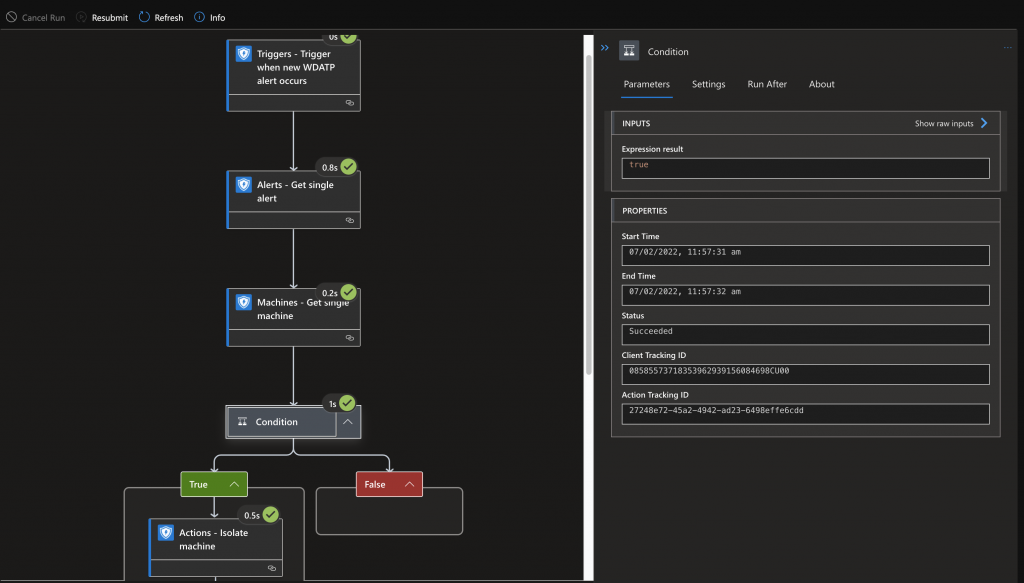
Happy Automation with Logic Apps
Imported from frank.cloud. The original page did not display a publication date.